Set up a home workspace in a small room
A useful home workspace needs a stable surface, suitable light and a clear way to finish the working day.

A home office in a small room needs a reliable working position, usable equipment and a way to return the room to its other purpose. It does not necessarily need a separate room or a large desk. It does need to work when your laptop, notes, charger and current task are all present, rather than only when the surface is empty.
Start by describing the work you actually do. Someone who writes on a laptop occasionally has different needs from someone who spends the day comparing documents, taking calls or using specialist equipment. Use that description to choose the location and furniture before adding accessories.
Write a short brief for your working day
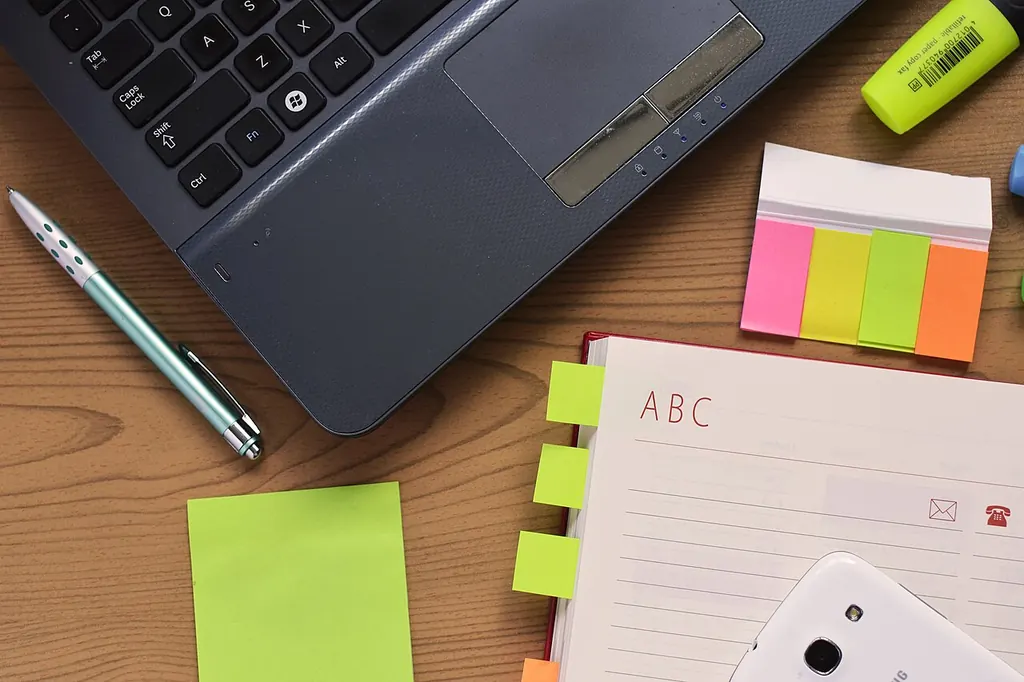
List the equipment that must be available at the same time. Include the less photogenic items: a headset, charger, notebook, mouse, documents and any equipment supplied by your employer. Decide which items stay on the desk and which can be stored between tasks. This gives a more realistic picture than measuring a laptop on its own.
Record how often you work there and whether someone else uses the position. A permanent workstation may be justified for daily use, while occasional work at a dining table requires a convenient setup and pack-away routine. Neither arrangement succeeds if essential equipment has to be searched for across several rooms each morning.
Identify the tasks that need privacy or quiet. Frequent calls, confidential documents and concentration-heavy work can affect the choice of corner more than its appearance. Do not assume a shelf divider will provide acoustic separation. If several people work at home, discuss overlapping activities before buying furniture for the same limited space.
Compare locations by use, not by the spare corner
Test two or three possible positions with your existing equipment. Look at the route through the room, the door opening and the space behind the chair. A desk may fit into a niche while leaving too little room to sit down or reach a cupboard beside it.
Check daylight at the time you actually work. A bright window can be welcome, but its position may create reflections or make video calls difficult. Try turning the desk before deciding that the window needs to be covered all day. Observe the room after dark too, especially if you study or work in the evening.
Consider power, connectivity and temperature as parts of the location. Do not block ventilation openings or place equipment where a door repeatedly catches its cables. If the only workable position requires changes to fixed wiring, discuss that with a qualified electrician rather than building the daily arrangement around an awkward temporary cable route.
Choose a desk that holds the complete task
Measure the required working area using the equipment list. Open a document beside the laptop, move the mouse normally and place your notes where you can read them. Check the depth as well as the width. A narrow console can look suitable until a screen and keyboard leave no useful space in front.
Look underneath the desk. Drawers, braces and storage boxes can reduce the room available for legs and chair movement. A generous tabletop is not enough if the usable position is constrained below it. Test the desk and chair together, including whether armrests prevent the chair moving close enough for the intended task.
A folding or wall-mounted surface needs the same practical test. Confirm its load limits, installation requirements and stability through the manufacturer’s instructions. Decide where the equipment goes when it is closed. If folding the desk means dismantling every connection and filling the bed with work items, a simpler permanent surface may be easier to live with.
Adjust the equipment to the person
Set up the chair and working equipment as a combination. The HSE workstation checklist is a useful reference for checking seat adjustment, leg space, input devices and screen position. Use it to identify practical adjustments; this article does not substitute for an individual workplace assessment.
Try a normal task for long enough to notice awkward reaches or an unreadable screen. Move frequently used items closer and adjust text size in the software instead of automatically leaning towards the display. If a shared workstation is used by people of different sizes, record the adjustments each person needs so switching users is straightforward.
With a laptop, consider how screen and keyboard positions relate to each other. A separate keyboard or display may give more flexibility, but only if the desk has space for the whole arrangement. Do not buy an accessory solely because it appears in a desk photograph. Name the difficulty it will solve, then check that it fits and connects properly.
Plan lighting around the actual work
Look at a dark screen from the working position to identify reflected windows or lamps. Change the direction of a portable light or the desk where practical. During writing, check whether your hand shadows the page. The right position depends on the activity and user, so test it rather than choosing a side by habit.
Use a task lamp when a particular surface needs more light, while maintaining suitable room lighting for the rest of the activity. A stronger bulb alone may not solve a poorly positioned source. The living room lighting guide explains how to coordinate general and task lighting when work shares a room with relaxation.
Place switches where they are easy to reach and route leads away from the chair’s wheels and feet. Check that adjusting a lamp does not pull its cable tight or knock over something on the desk. These small details matter because the same movements are repeated throughout the week.
Check connections before choosing a dock
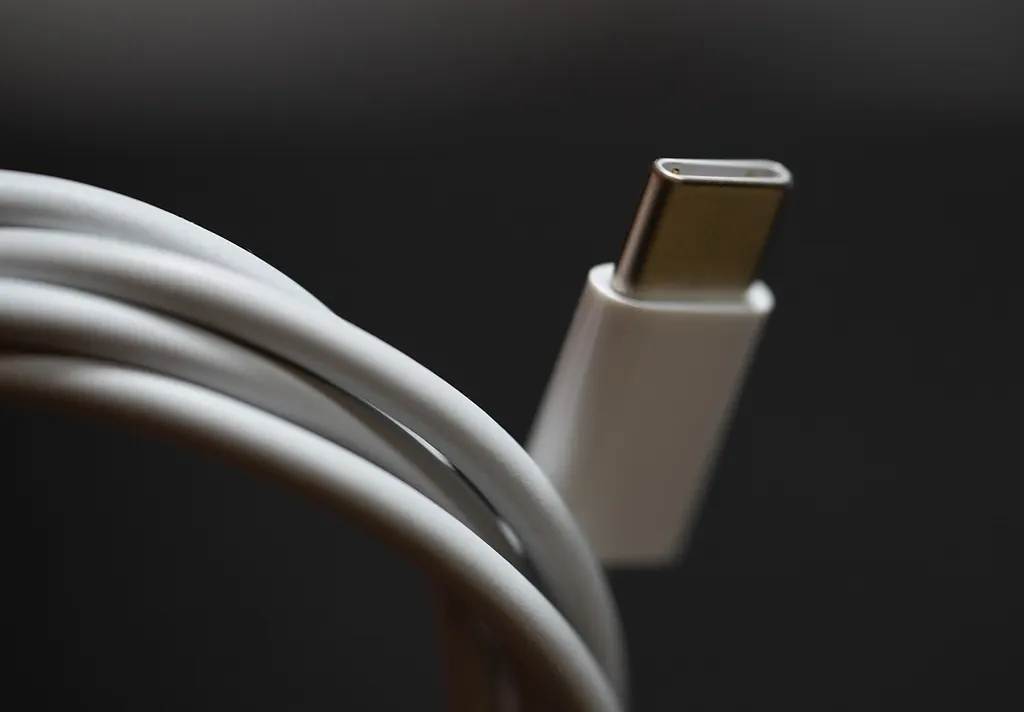
List the ports on the computer and the requirements of each device. A matching connector shape does not establish every capability. If you plan to connect a display and charge through one cable, check the computer, cable and dock specifications as a complete combination. The USB-C cable guide explains the distinctions to check.
Try the planned arrangement with a normal call or work session before fixing everything permanently. Verify that the camera, microphone, display and charging behave as expected. Keep a note of the working connection order and relevant product references so a later change does not require starting from scratch.
Measure network performance at the actual desk, using your usual work rather than relying only on signal bars. If calls fail there but work elsewhere, investigate the connection before replacing the computer. The home Wi-Fi guide helps distinguish a location problem from other parts of the connection.
Create a place for ongoing work and private information
Give current papers and tools a defined home close to the desk. Separate active work from supplies that can remain elsewhere. A small tray or folder can hold a task between sessions, provided it has a destination when the desk needs to be cleared.
Consider what is visible during a video call and what is accessible to other people in the home. Remove private papers from the camera view and use the privacy and security arrangements required for your work. A tidy background is useful, but protecting information matters more than decorating a shelf behind the chair.
Keep your employer’s equipment and files within its approved arrangements. For personal documents, maintain a separate, understandable storage and backup routine. The photo and document backup guide describes questions to resolve before assuming that files are safely copied somewhere.
Make starting and finishing simple
Prepare a short start routine: retrieve the current task, connect the necessary equipment and clear anything unrelated from the working surface. At the end, save the work, note the next action and return portable items to their place. The routine should take advantage of the layout, not compensate for equipment scattered across the apartment.
If you study at the same desk, keep the next learning task visible without covering the surface with every available resource. The study plan guide helps turn a broad goal into manageable sessions. A clear next step makes the space useful immediately when you sit down.
After several ordinary days, review the repeated inconveniences. Perhaps the headset has no storage place, the chair catches a cable or the current folder is always buried. Fix these specific problems before adding more organisers. A small home office is successful when it supports the real work and can coexist with the rest of the room without a daily struggle.