USB-C cables: the same connector, different features
USB-C describes a connector shape. Charging, data speed and video output depend on support across the entire connection.
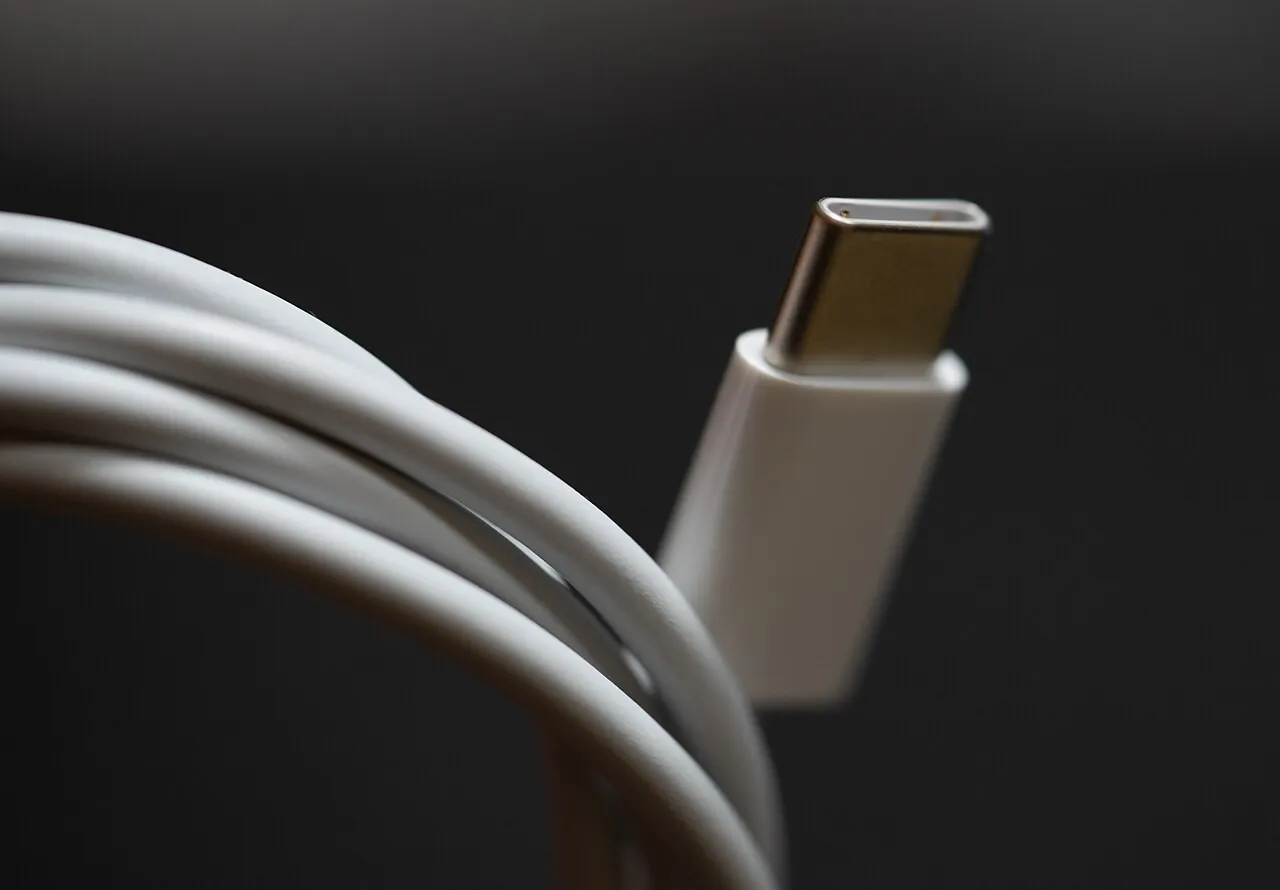
Choose a USB-C cable by the job it must perform: charging, transferring files, connecting a display or supporting a docking station. The oval connector tells you what physically fits, but it does not describe every capability of the cable or the socket. Start with the exact devices at both ends and the result you need.
A useful purchase description is specific: “connect this laptop to this monitor at the required resolution while charging” or “copy photographs from this phone to this computer”. “A fast USB-C cable” leaves too many questions unanswered. Separating those questions makes it easier to choose a suitable lead and diagnose a connection that behaves unexpectedly.
Read the specifications at both ends
Find the model numbers of the devices and identify the actual ports you plan to use. A laptop may have several similar-looking sockets with different supported functions. Read the port description in the manufacturer’s manual, including charging input, video output and data capability, rather than assuming every socket behaves like the one beside it.
Record the connector needed at each end. A USB-A to USB-C lead and a USB-C to USB-C lead are different arrangements. If an adapter is involved, add its exact model to the list. The fact that several parts can be physically connected does not establish that the resulting chain supports your intended function.
For an existing setup, label the parts before changing them. Identify the wall adapter, laptop port, hub, monitor input and cable where applicable. This simple map prevents a common troubleshooting mistake: replacing a cable while unknowingly continuing to use the wrong input or a port that does not provide the required feature.
Keep charging power separate from data speed
With USB Power Delivery, compatible equipment negotiates a supported power supply; a cable’s advertised wattage is not a promise that every device will charge at that rate. USB-IF’s Power Delivery overview explains negotiated power. Check the device’s requirements, the source’s supported output and the cable rating together.
For example, a lead capable of carrying more power does not make a lower-powered charger produce extra power. Equally, a high-output charger does not establish that a laptop accepts that output through the selected port. These are separate compatibility checks, so keep the device manual and charger specification beside the cable listing.
For higher-power charging, use the cable type required by the device and charger. USB-IF’s PD 3.1 update introduced support up to 240 W with corresponding cable requirements. That upper capability is not a description of every USB-C product, and an older cable should not be assumed suitable just because its plug fits.
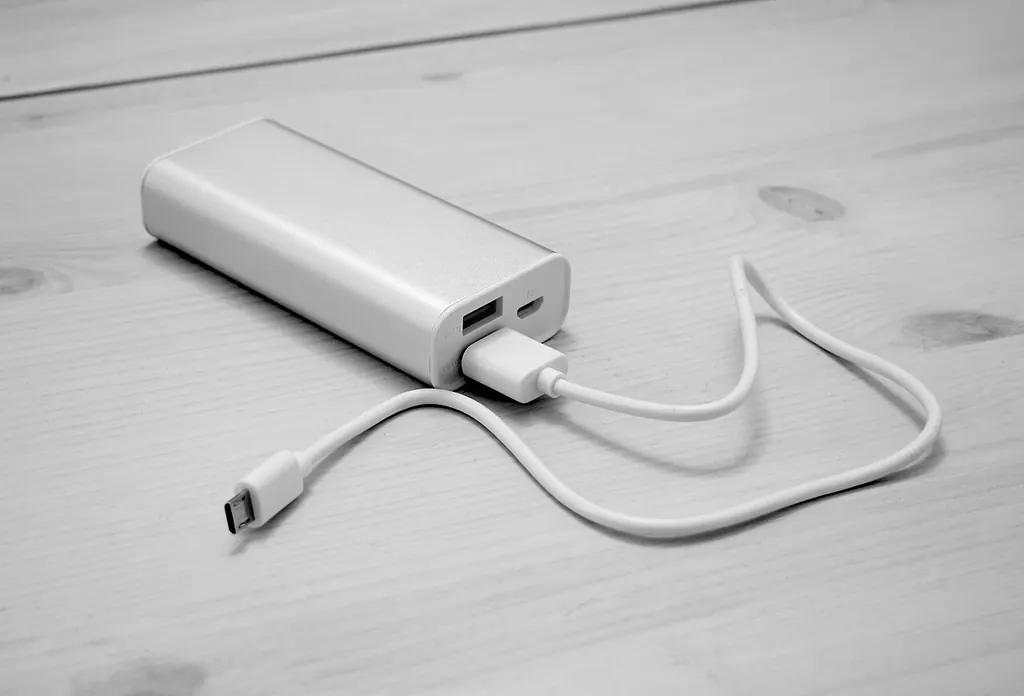
If the power source is portable, compare the complete setup with the power-bank selection guide. Check the intended output rather than only the total rating printed on the power bank. A suitable cable is one part of the charging arrangement, not a replacement for understanding the rest of it.
Look for a stated data rate
When transferring large files, look for a declared data capability rather than a charging claim. USB-IF’s consumer naming guidance uses explicit rates such as USB 5Gbps, 10Gbps, 20Gbps, 40Gbps and 80Gbps. These describe signalling capability, not a guarantee that your files will copy at that headline rate.
Keep the units clear. Bits and bytes are different: eight bits make one byte. As a simplified arithmetic example, 10 gigabits per second corresponds to 1.25 gigabytes per second before overhead and other limitations. Actual transfer also depends on the devices, storage, connection path and workload, so do not turn that conversion into a promised copying time.
Apple provides a concrete example of separate capabilities: its USB-C iPhone connection guide says the included charging cable supports USB 2 speeds, while supported faster transfers require an appropriate USB 3 cable. The lesson is to verify the exact supplied cable, not to assume that a new connector means the fastest available transfer.
For ordinary occasional document transfers, identify what is actually necessary before choosing a more elaborate cable. For repeated large photo or video transfers, record the device and storage requirements carefully. A clear purpose helps distinguish a meaningful capability from a number that your current equipment cannot use.
Check video support as a complete connection
For a display connection, verify that the source port supports the required video output. VESA’s DisplayPort over USB-C explanation describes video carried through an alternate mode of the connector. The connector shape alone therefore does not establish that a particular phone, laptop or cable can deliver the desired picture.
Check the display’s input, the source’s supported resolution and refresh rate, and the cable or adapter’s documented support. Keep the complete combination together when asking for advice. “Works with USB-C monitors” is less useful than confirmation for the resolution, refresh rate and device combination you intend to use.
Read the direction of adapters where specified. A product intended to take video from USB-C to an HDMI display should not automatically be treated as a reversible connection for an HDMI source and USB-C screen. Buy for the documented signal path rather than the two connector shapes pictured on the package.
For a projector, follow the home projector guide and establish the source connection before arranging the room. A USB socket on a projector may have a different purpose from receiving live video. Confirm its role in the projector’s manual instead of discovering the limitation when the family is ready to watch.
Treat docks and Thunderbolt as specific requirements
A docking station can introduce additional conditions for displays, charging and data at the same time. Check the dock’s host connection and the cable supplied or specified for it. Do not replace that cable with an unlabelled charging lead and assume that every function will remain available.
Thunderbolt compatibility also needs explicit confirmation. As a specific illustration, Apple’s Thunderbolt 3 to Thunderbolt 2 adapter documentation excludes USB-C ports that lack Thunderbolt support. That example demonstrates why physical fit is insufficient; it is not a general recommendation to use that adapter for modern USB-C peripherals.
USB4 also describes a connection architecture rather than a magical upgrade for any attached device. USB-IF explains that the resulting connection scales to mutually supported capabilities. When a dock is involved, inspect the complete path and any stated simultaneous-use restrictions rather than evaluating each advertised maximum in isolation.
For a permanent desk, plan the connections with the home-office layout guide. Leave access to the port and enough cable movement to position the laptop without pulling the dock. A technically compatible cable can still be inconvenient if its routing puts constant strain on the connection.
Choose length and construction for the real position
Measure the route the cable will follow, including bends around furniture and the space occupied by each plug housing. Avoid a length that only works when both devices are pulled to the edge of a surface. Conversely, an unnecessarily long spare loop can be awkward in a small bag or beside a moving chair.
Check that the connector housing fits with the device’s case installed and that an angled plug points in a useful direction. Product photographs may not show the clearance around a recessed port. Compare dimensions or try the arrangement where possible rather than relying on the cable’s overall length alone.
For active, optical or unusually long cables, read the product’s supported functions and any direction markings carefully. Do not transfer assumptions from a short passive lead. Check whether the exact cable supports the charging, data and display combination you need, including any stated limits when those functions operate together.
Inspect the cable and connectors before use. Stop using a damaged or visibly deformed lead and follow the equipment manufacturer’s handling instructions. Do not investigate an intermittent connection by bending a damaged cable repeatedly until it temporarily works. A reliable replacement must be selected for the required function, not simply from the nearest drawer.
Diagnose one variable at a time
Start with the simplest documented connection, removing an unnecessary hub or adapter where the device instructions allow. Confirm the correct ports and input selection. Test with a known suitable cable, keeping the other parts unchanged. Then change another component only if needed, so the result tells you something about the cause.
Separate the symptoms. Charging without data, data without video and a completely unrecognised device are different observations. Record the exact message and what still works. Before blaming the lead for slow charging, check the charger’s output and the device’s own charging conditions; before blaming it for no picture, check source video support.
After a successful test, label the cable by its verified purpose and keep the model information. A note such as “desk monitor” is useful alongside documented specifications; a colour alone becomes ambiguous when similar leads accumulate. Keep spare cables identifiable so the next replacement does not reopen the same compatibility puzzle.
Before buying, you should be able to state both connectors, required power, required data capability, any video or dock requirement and the practical length. If an essential answer is missing, resolve it from the exact product documentation. That is a more dependable selection method than treating every USB-C cable as interchangeable.